Discovery features overview
Overview and fast onboarding
Different types of granular discoveries let the user easily filter/select services and hosts that are to be discovered and monitored.
-
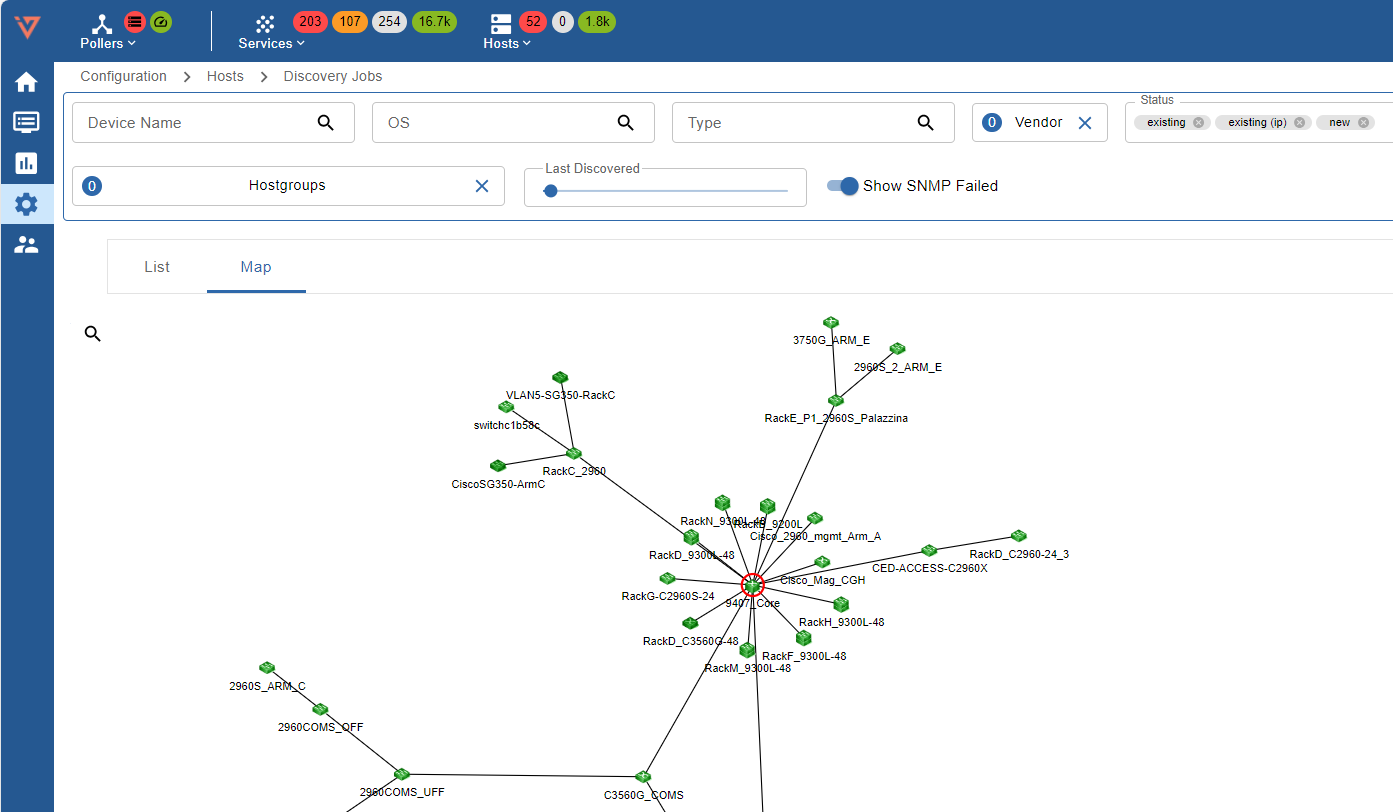
Network Topology Discovery: Layer 2/3 discovery that creates comprehensive network topology maps.
-
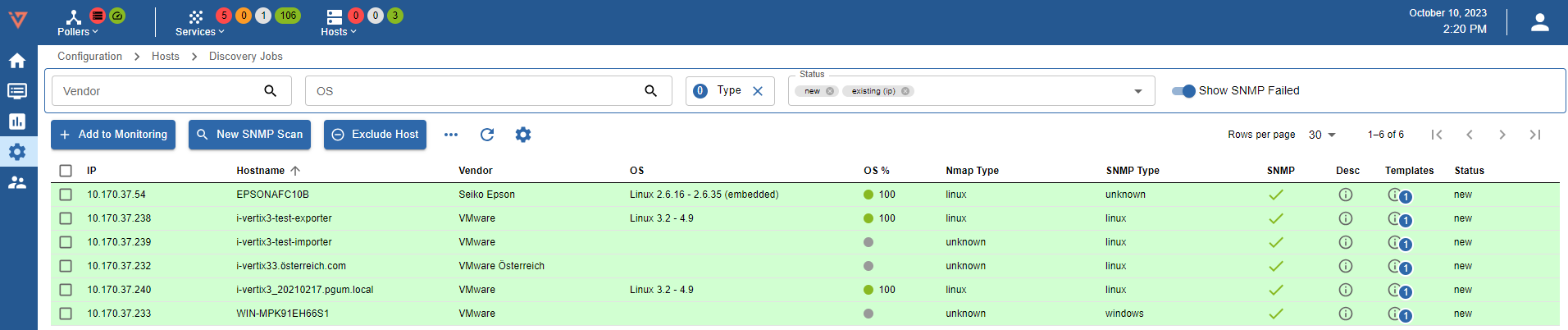
Host/Device Discovery: scans any network, subnet, or IP address.
-
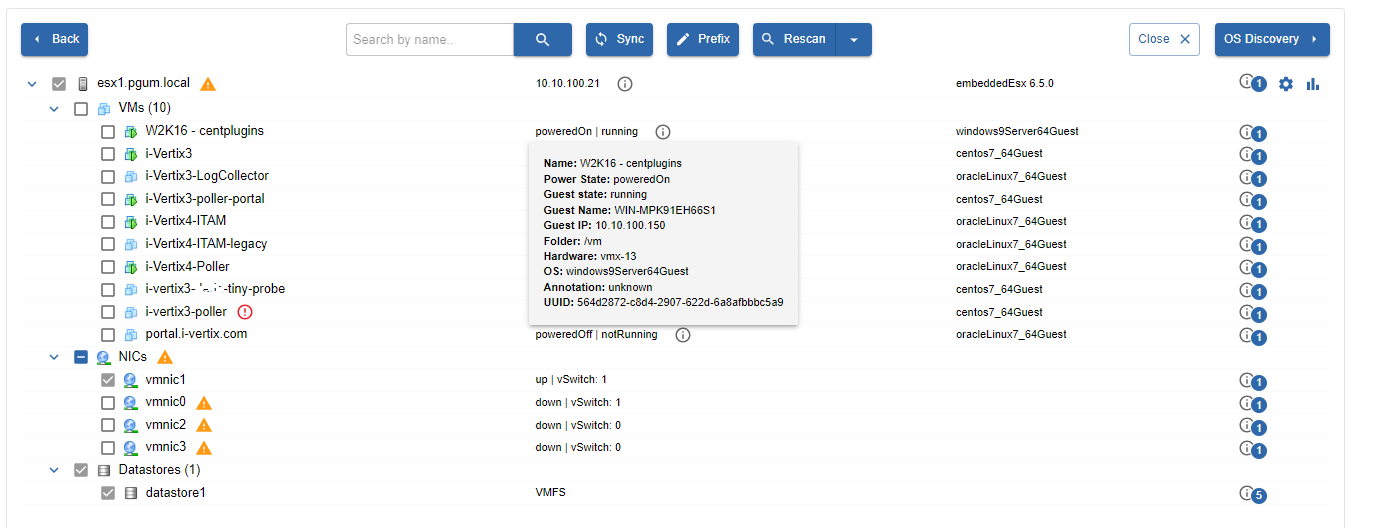
VMware Discovery: scans VMware environment (Datacenter, Clusters, Hosts, Datastores, VMs, NICs).
-
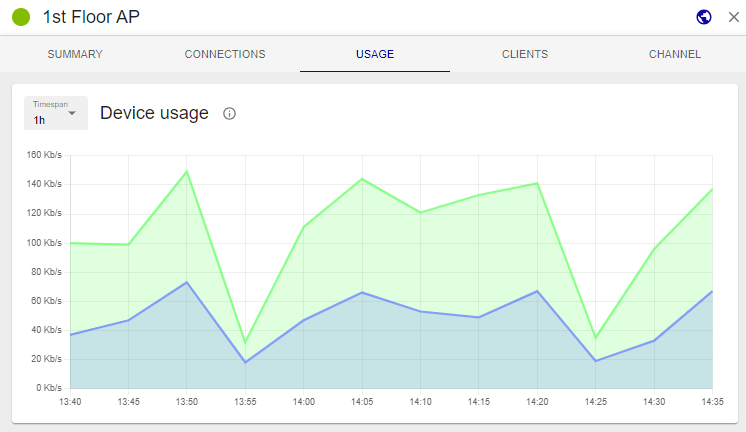
Cisco Meraki: discovers cloud Cisco Meraki infrastructures (APs and Switches)
Discovery results are matched with preconfigured monitoring templates to automate monitoring configuration.
Quick start configuration
New Discovery Job

To add a new Discovery Job:
-
Go to Configuration -> Hosts -> Discovery Jobs
-
Click on
+ ADD JOB -
Select the desired discovery type:
- Host Discovery
- Network Topology Discovery
- VMware Discovery
- Meraki Job Wizard
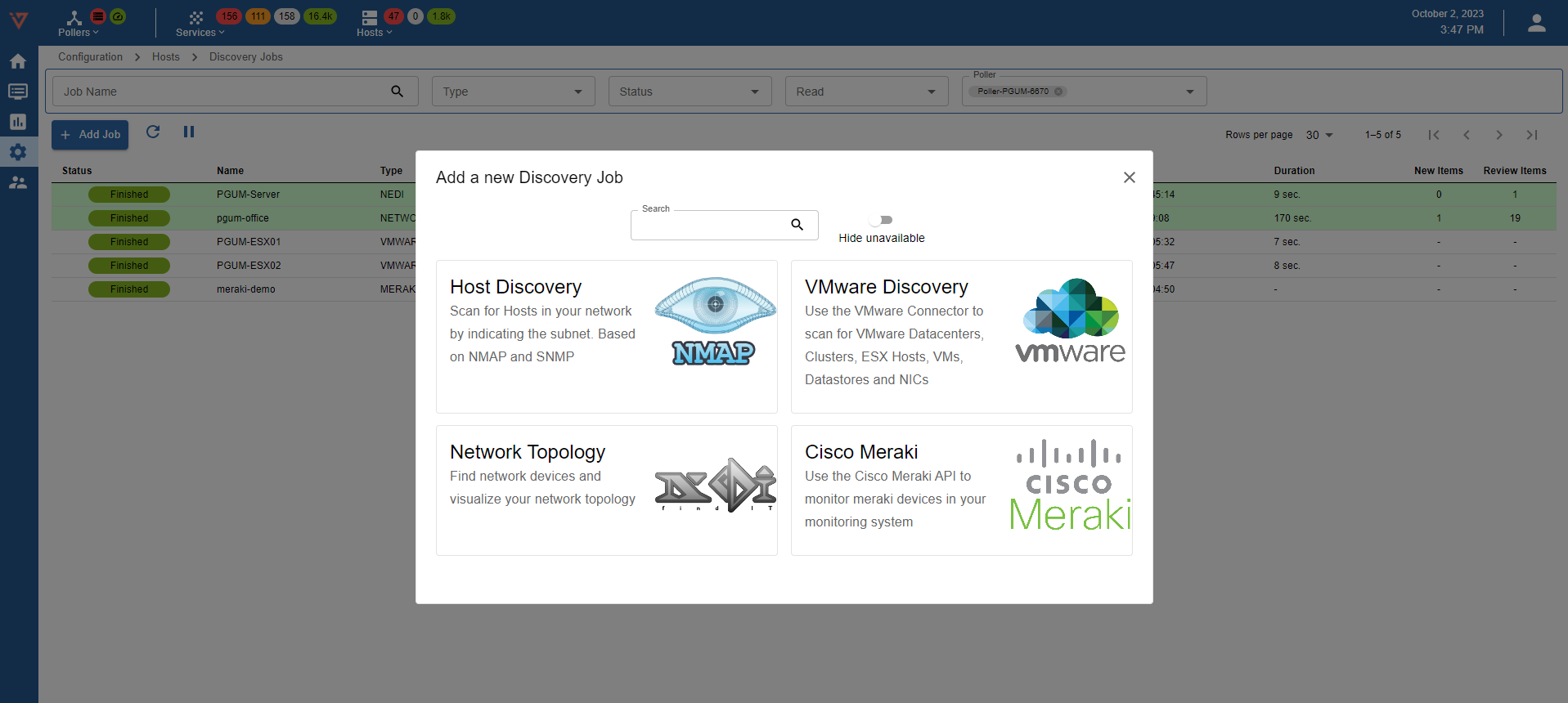
It may occurr that the Host Discovery, VMware Discovery and/or Cisco Meraki are grayed out. Please verify following prerequisites are available for the individual discoveries:
- Host Discovery: install the Linux SNMP plugin pack from Plugin Store
- VMware Discovery: install the VMware vCenter and vSAN (optional) plugin packs from Plugin Store
- Cisco Meraki: download the Cisco Meraki Cloud Controller plugin pack from Plugin Store
Job status
A discovery job is assigned a job status. Following job statuses are available:
-
New: new discovery job.
-
Running: the job execution is in progress, and the job can't be modified until it completes.
-
Failed: job didn't complete correctly. To see the reason why it failed, hover the mouse over the F button.
-
Finished: the job completed successfully and its results can be viewed.
